See It in Action
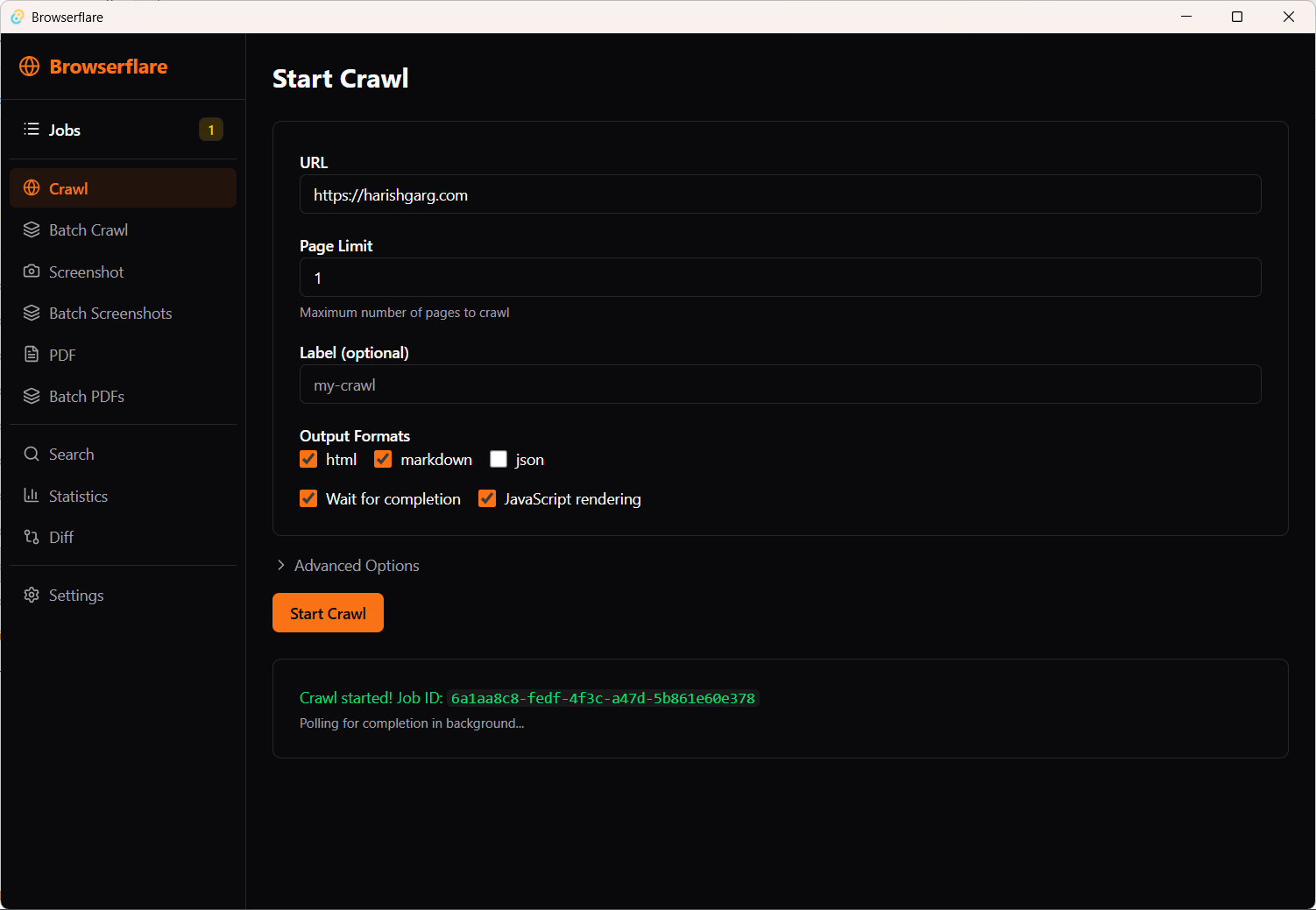
Configure and launch crawls with full control over output formats and rendering options
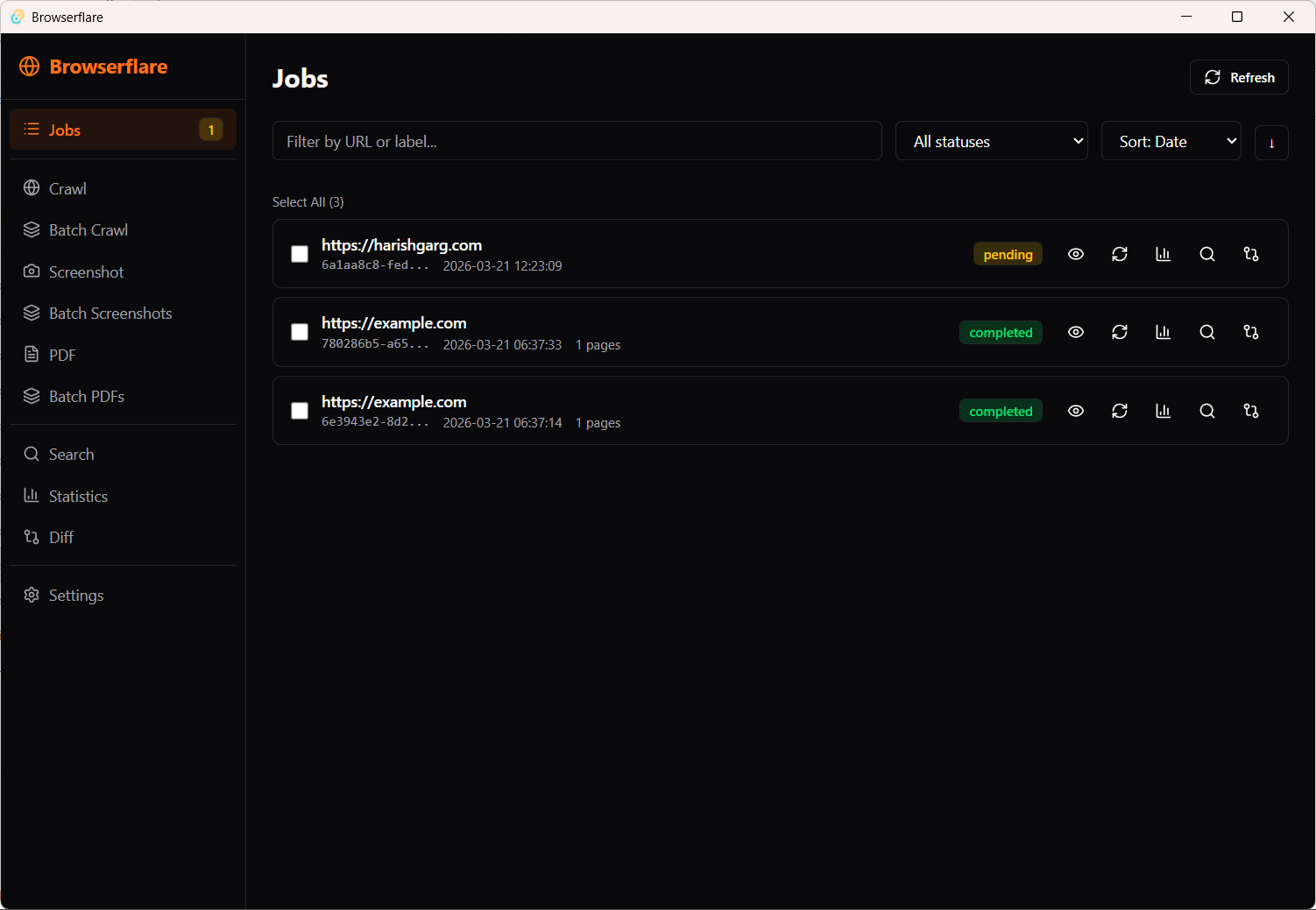
Monitor all your jobs — filter by status, inspect results, and track progress in real time
A powerful desktop app for Cloudflare's Browser Rendering API. Crawl websites, take screenshots, generate PDFs, and manage batch operations — all from one interface.
Configure and launch crawls with full control over output formats and rendering options
Monitor all your jobs — filter by status, inspect results, and track progress in real time
Crawl any website with configurable depth, selectors, and page limits. Extract clean content with Readability or raw HTML.
Capture full-page or viewport screenshots in PNG, JPEG, or WebP. Control quality, dimensions, and transparency.
Generate PDFs with custom paper size, orientation, margins, scale, and background rendering options.
Process multiple URLs at once. Queue crawls, screenshots, and PDF jobs to run sequentially or in parallel.
Monitor running jobs with real-time progress. View status, cancel operations, and inspect results as they arrive.
Search through crawled results with instant filtering. Find what you need across all your captured data.
Track API usage with detailed statistics. Monitor request counts, response times, and data volumes.
Compare crawl results over time. Spot changes in page content, structure, or metadata between runs.
Sign up at dash.cloudflare.com if you don't have one already. The Browser Rendering API is available on Workers Paid plans.
Navigate to your Cloudflare dashboard. Copy your Account ID and generate an API Token with Browser Rendering permissions.
Download the app for your platform once it's available. Browserflare is coming soon for Windows, macOS, and Linux.
Launch the app and enter your Cloudflare Account ID and API Token in the settings screen. Credentials are stored securely on your machine.
You're ready to go. Enter a URL and start crawling pages, capturing screenshots, or generating PDFs.